This function is being used for those sites using Card Iissue plug-in
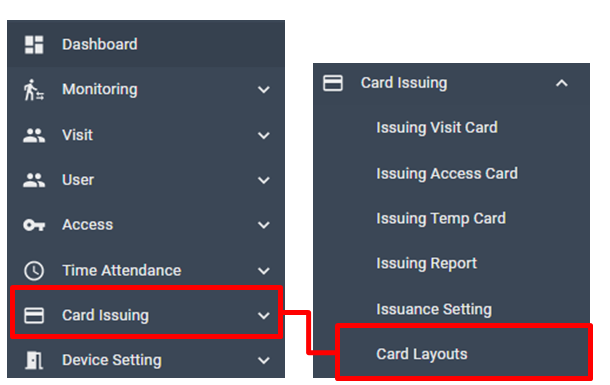
[Card Issuing > Card Layouts]
Add New Card Layout
For the templates showing in this list, click + button to add new Card Layouts

Input Name first
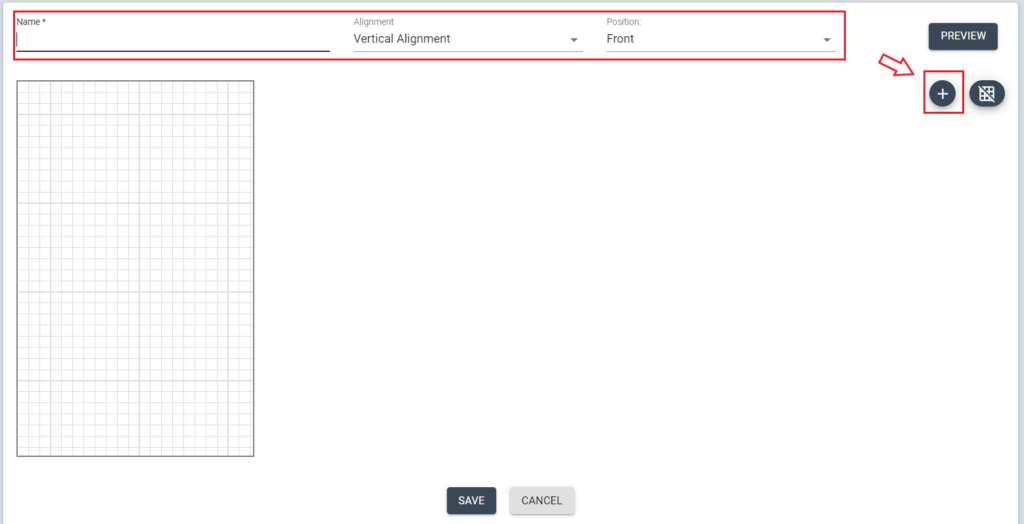
Choose Alignment to set Vertical /Horizontal layout
Choose Position to modify Head(Front) or Tail (Back) side of the card
Click Greed out icon to remove Greed.
[PREVIEW] Button is to check the designed image after edit.
Click + button to add Backgrand/Image/Avatar(photo)/Text/DB Info
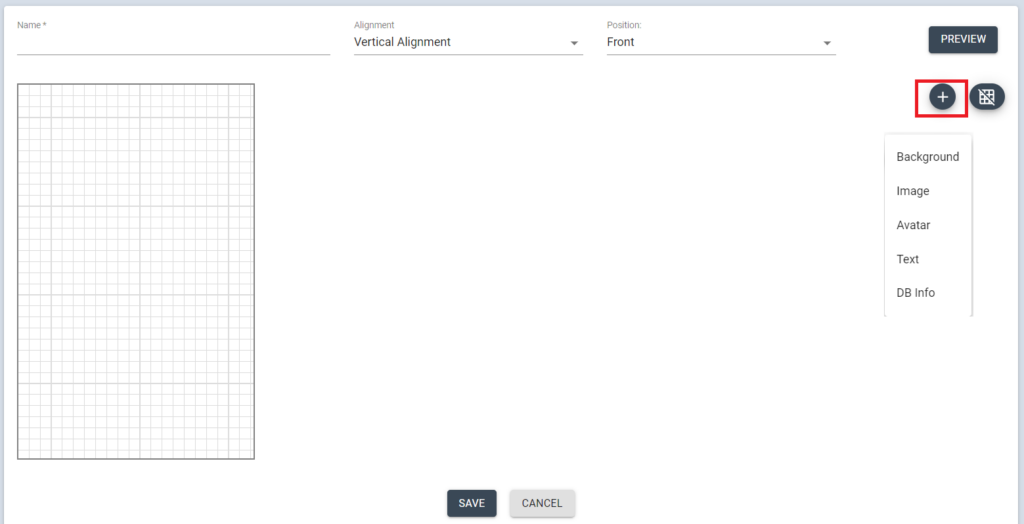
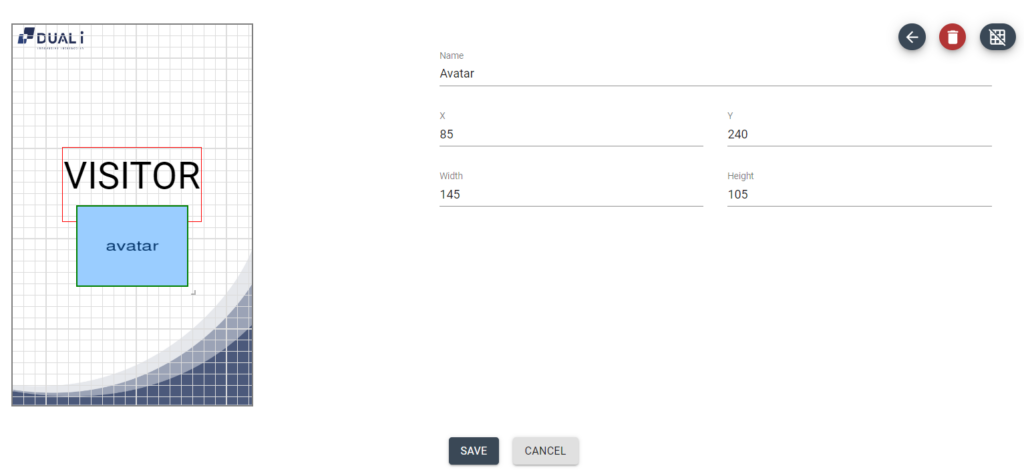
Choose Avatar will get registered photo image of the User from DB as well as other DB info (Name/Department/Position) information
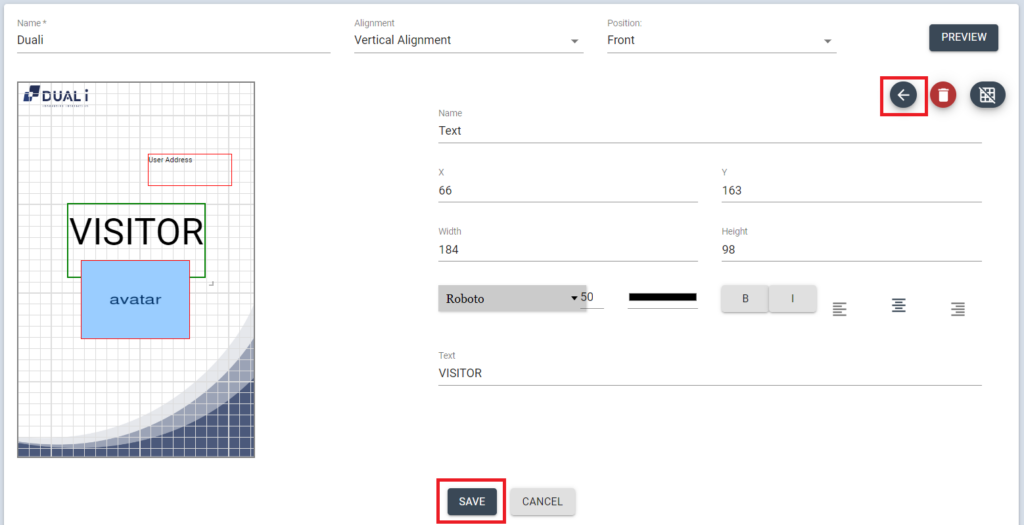
Select Text and edit text/ position, font, size then click [SAVE] button
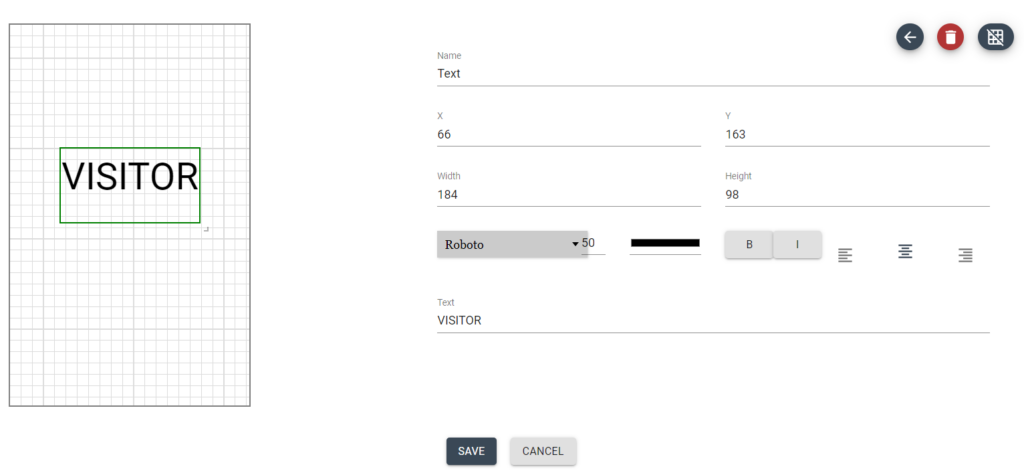
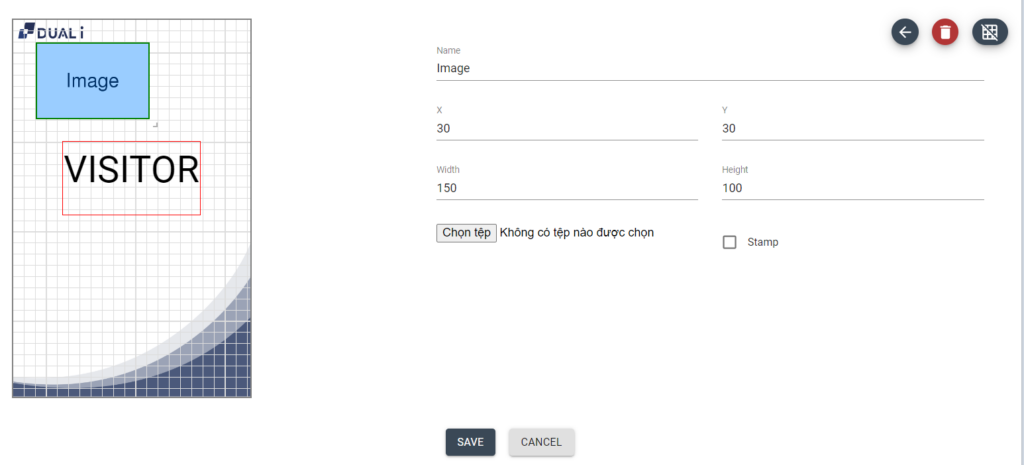
Select Background / Image, then upload the image file to put on the card.
Then adjust, Size and location
Select Avatar to bring FACE ID image from DB.
To input Name/Department/Position information from DUALL Master DB, click DB info
Select data to print and locate the box in position.
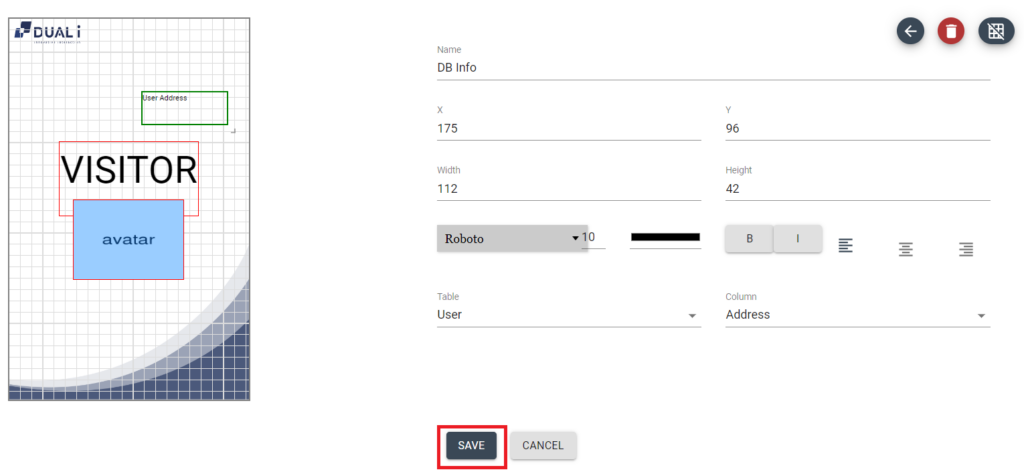
Click [SAVE] after edit. and click <- button
All layers will be displayed
Remove layer
To Remove, layer file click trash icon , then click [SAVE]
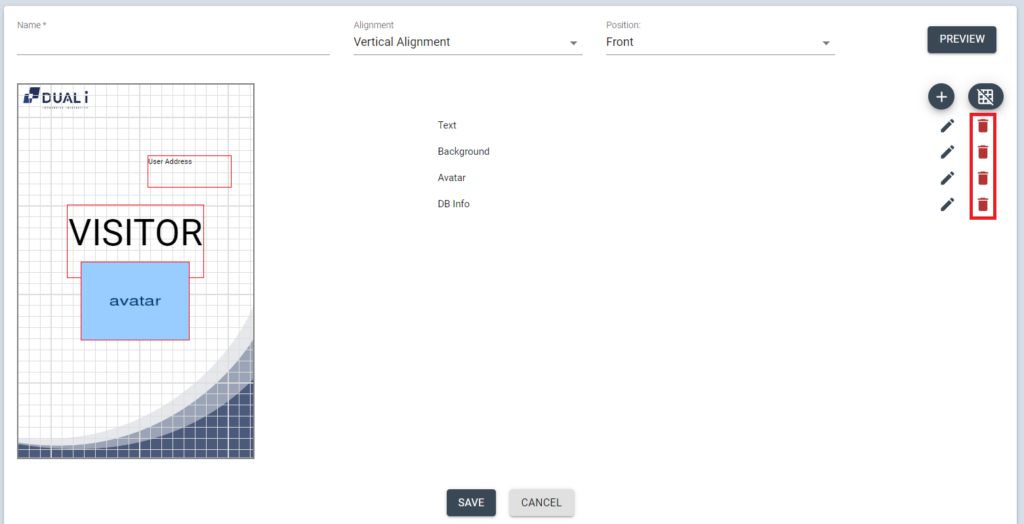
Edit Card Layout
To edit the existing card layout, click edit Icon from the list.

Select the layer to edit, and edit the information
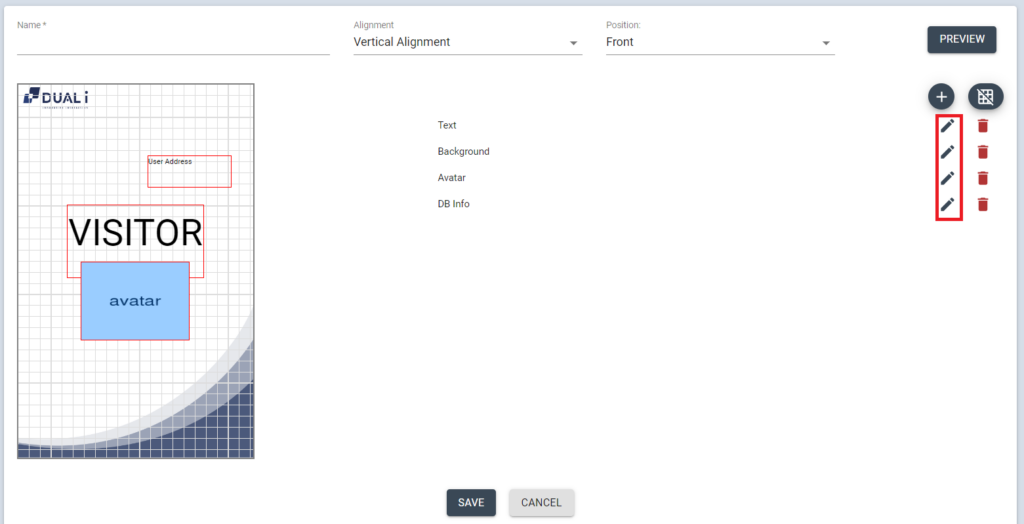
After Edit, click <- button to return layer file. or click [SAVE] to complete the change
Copy Card Layout
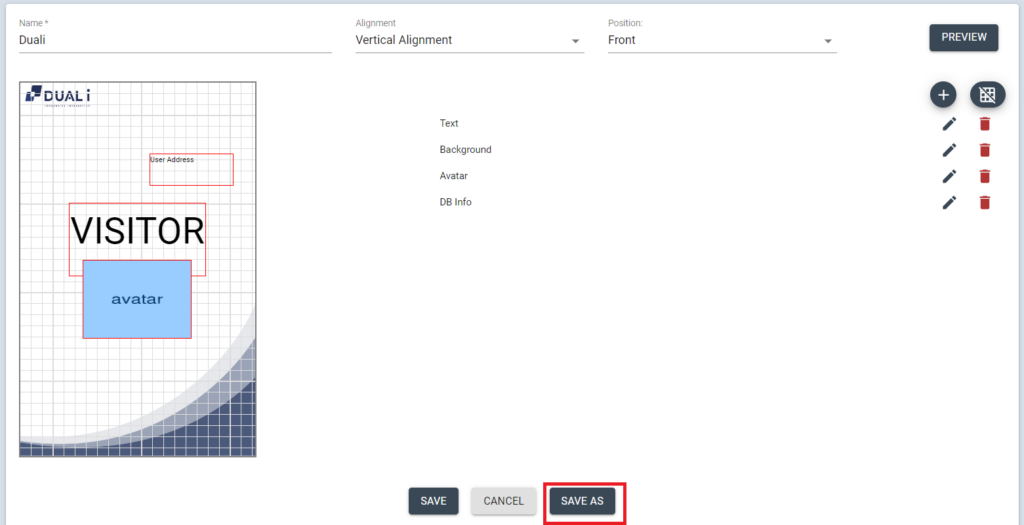
To copy from the existing layout, select the card you want to copy from the Card Layouts list by clicking the edit icon
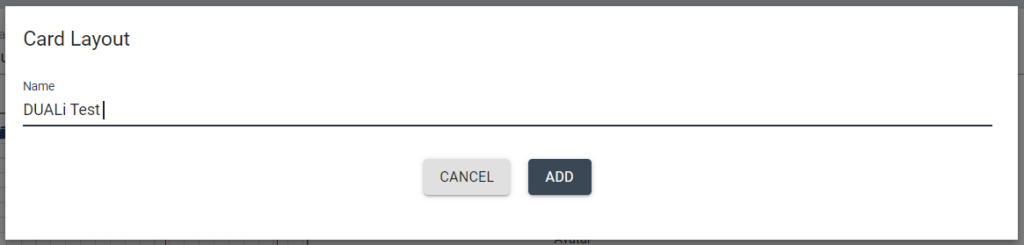
Edit /relocate the information as need, then click [SAVE AS] button to save it as another name.
After entering the new card name, press [ADD] to save the card
Delete Card Layout
Select the card to delete and press the DELETE icon
