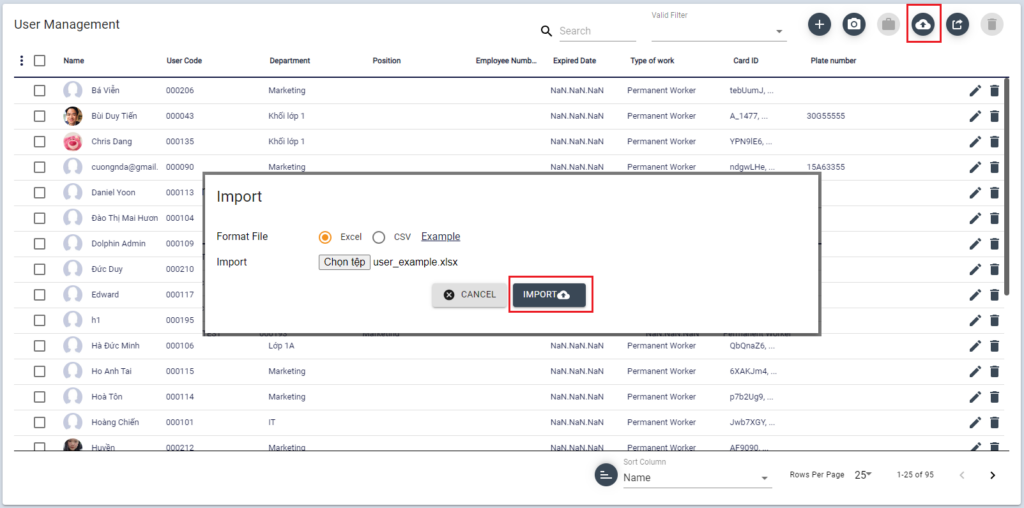
There’re two ways to add users. To register multiple users at once, it’s easier to use Add user from the [User] menu.
In case of adding one person at a time, you can also add them from the [Monitoring] menu.
1] Add User from User menu
[ User > User ]
From User menu, select User.
Click + button on top of the User list
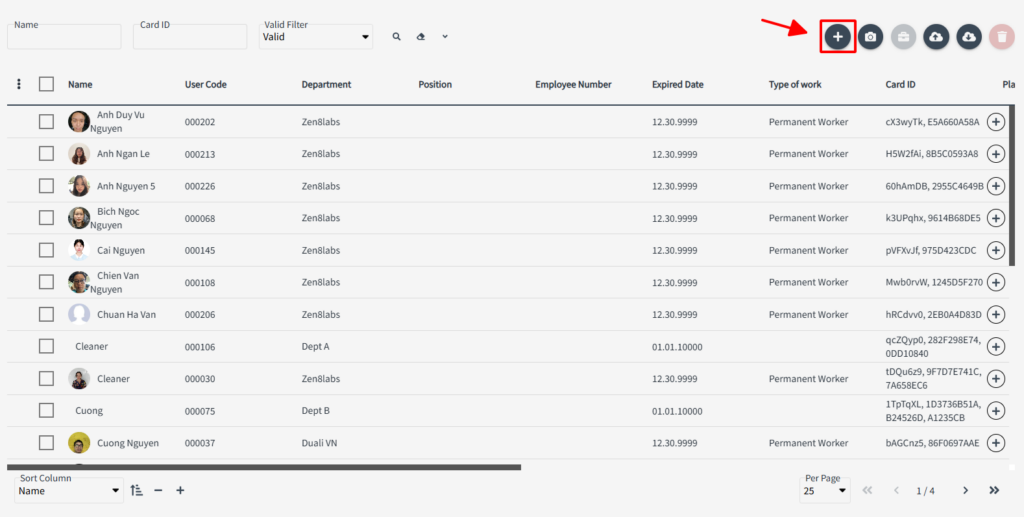
Then User Information page will be opened.
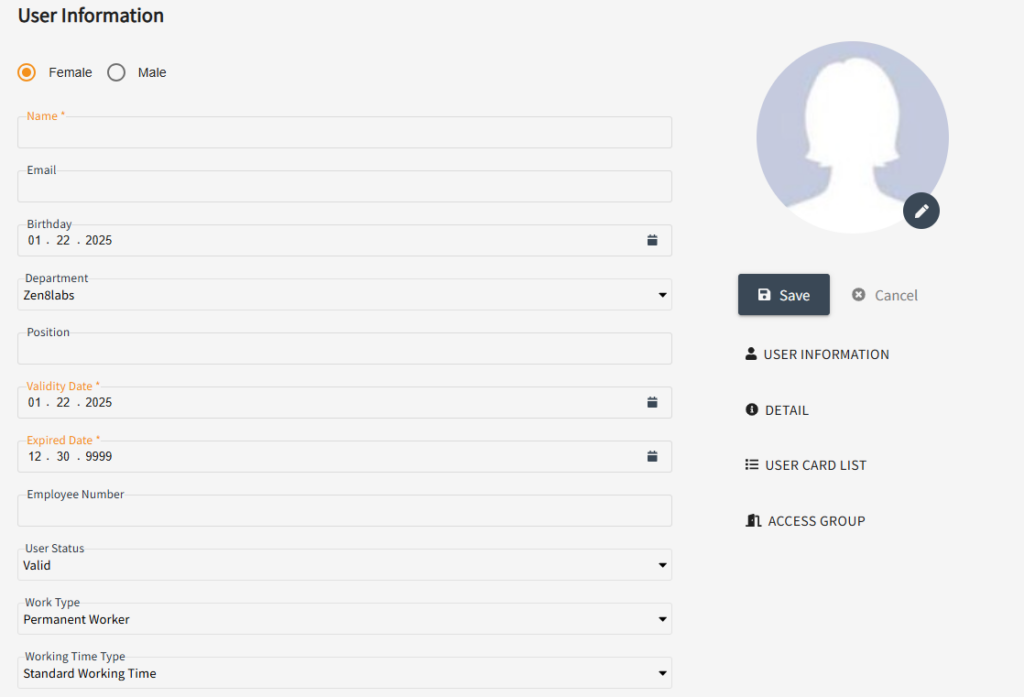
Fill out the Basic information of the User. ( the field with * mark is mandatory information to register a User) then click [SAVE]
- Validation Date : The start date to give access
- Expired Date : The access expiration date
You can add Detail information of the user in DETAIL tab. Detail information is not mandatory, so it can be skipped.
In User Card List tab, you can register the access authentication method of this user.
From User Card List tab, click + button
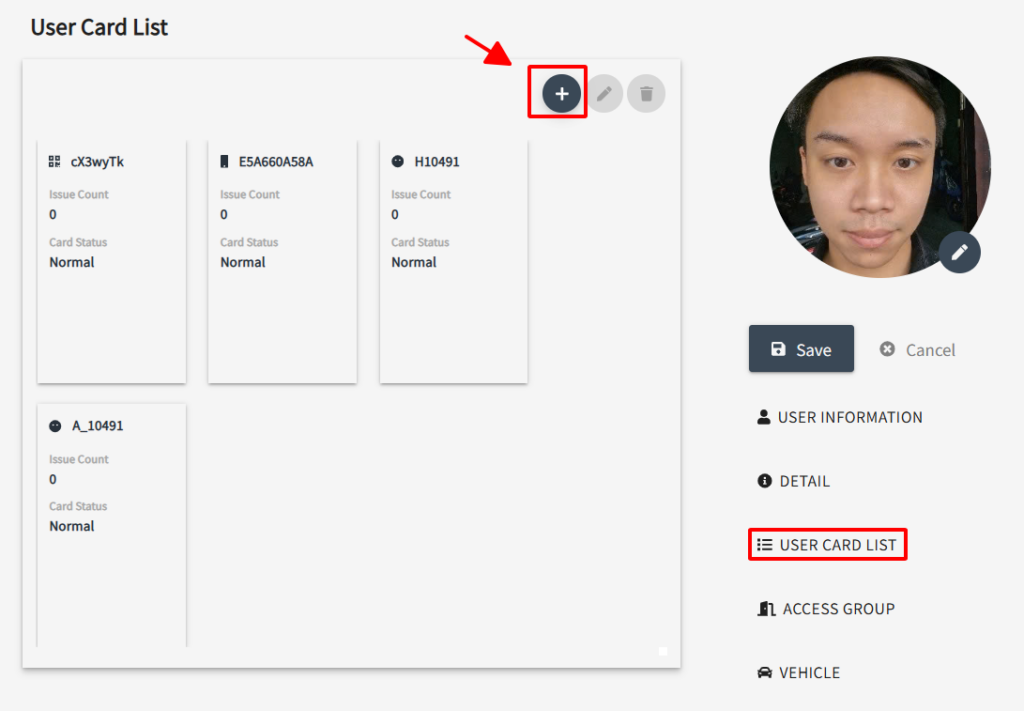
Select Authentication method type to add
- Add RF Card
Then input UID of card, or connect Dragon(DE-620) then place ID card to get UID. Click [ADD]
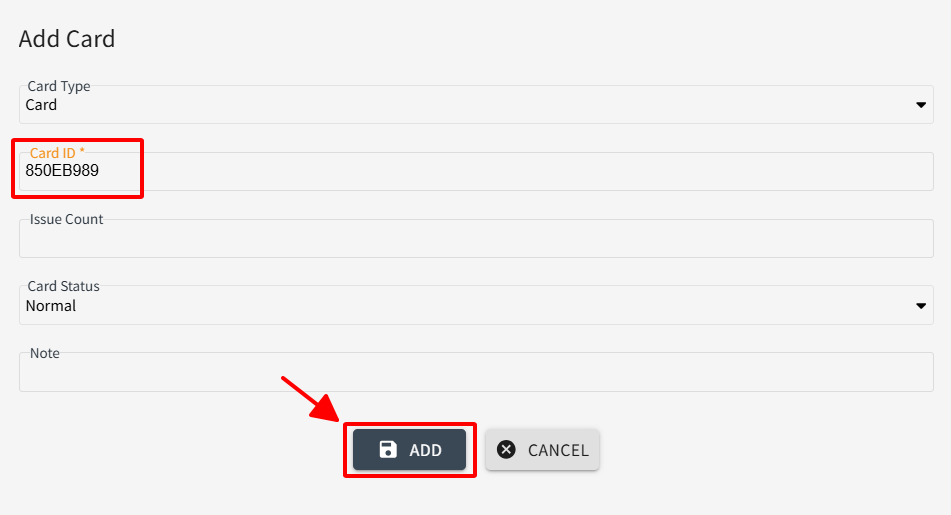
- Add QR/ PassCode/ NFC Phone/ H Face ID/ L Face ID
Select the type of ID you want to add and click [ADD]
- Add Aratek FingerPrint
Select Card type then select Device scan fingerprint and click [ADD]
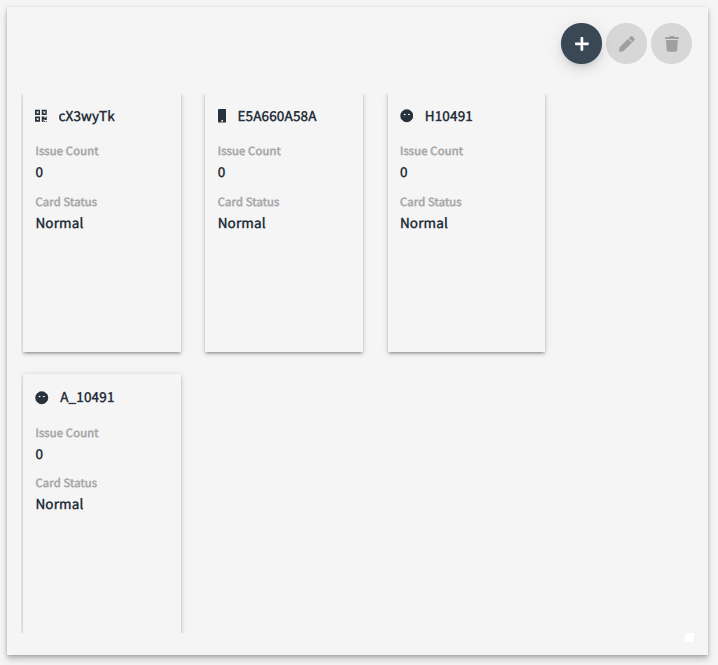
Check the Card ID added to the list, then click [SAVE]
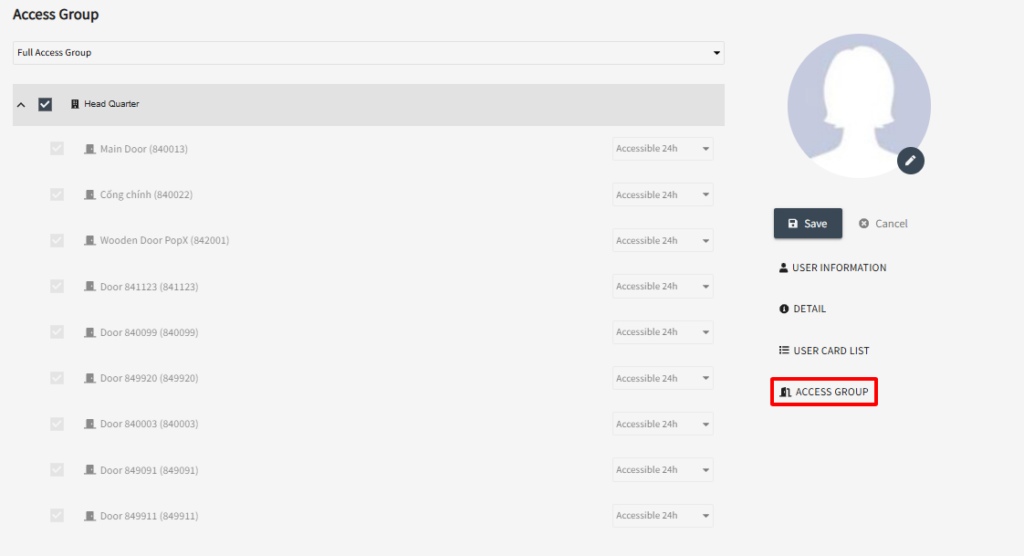
Select the Access group for this user, and assign doors to give access then click [SAVE]
For more information on Access group, see Access Group.
The following message will pop-up asking to save this user. Click [Confirm] to save this User.

Then DUALL Master system will automatically save and send this User ID to devices.
2 ] Import /Export User
You can import/ Export user Data in Excel/CSV file. Use this function to creat users in bulk or to modify User information at once.
- Export Excel file
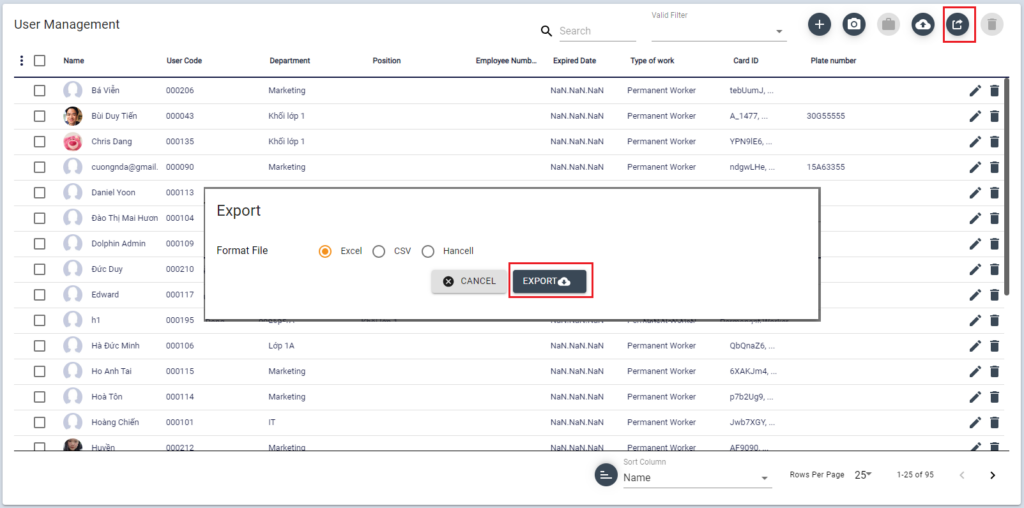
Click the download button then select the file format to download.
The Excel file downloaded automatically.
- Import Excel file
Download the excel file, and fill out the form in the table.

Click the Upload button, select the file then click [IMPORT]