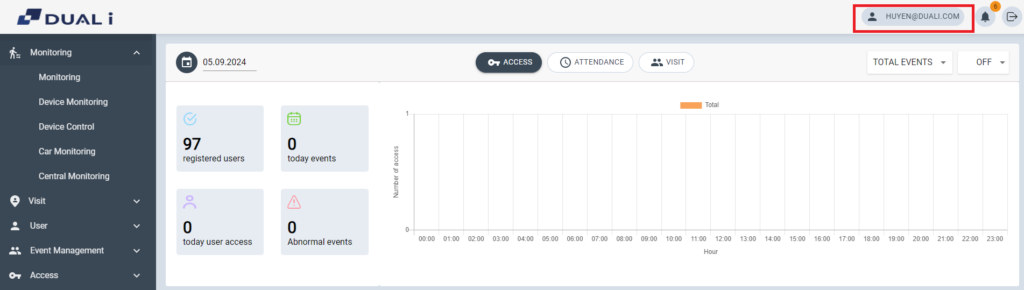
Click account on the right top of Home screen
The page display personal setting
- Photo Image/Avatar
The image uploaded from here, will be displayed in access monitoring screen
For those sites using Face ID, the registered face is displayed automatically.
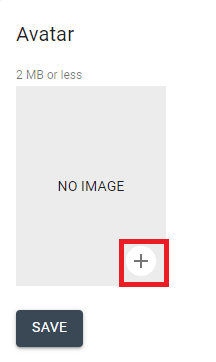
To upload photo manually, click + and select image, then click [SAVE] button.
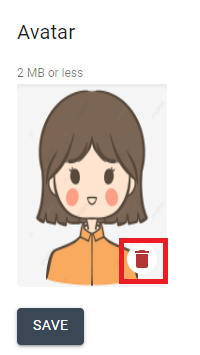
To change avatar, click on the trash icon, then upload a new photo and [SAVE]
2. System UI, Language, Timezone
In Basic setting, operator can set the main system UI, language and Timezone.
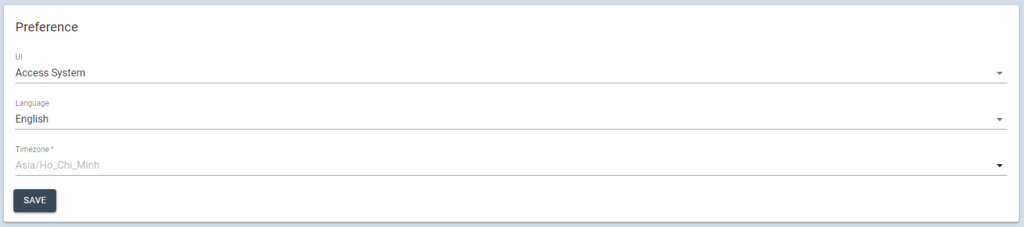
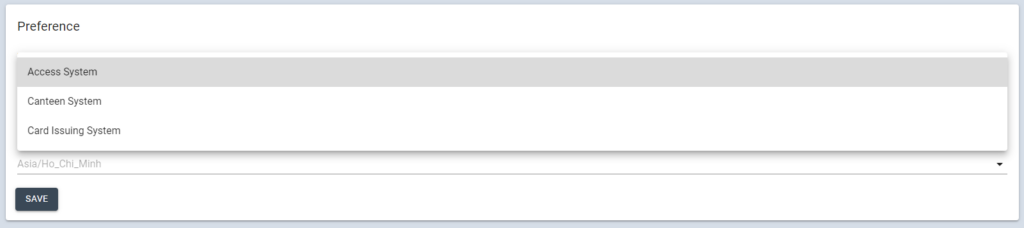
There are different menu trees of UI for access system, Canteen management and Card issuing
Select the preference system to display
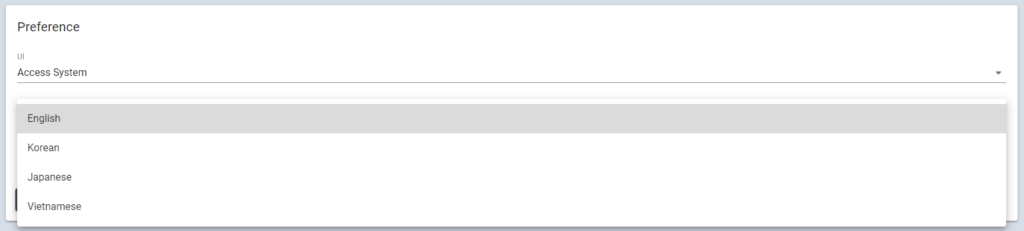
Select preferred language
Select Timezone based on the location/country then click [SAVE]
3. Change Password
To set new password, input new password 2 times (passwrod & confirm password) then click [SAVE]

4. Switch Company
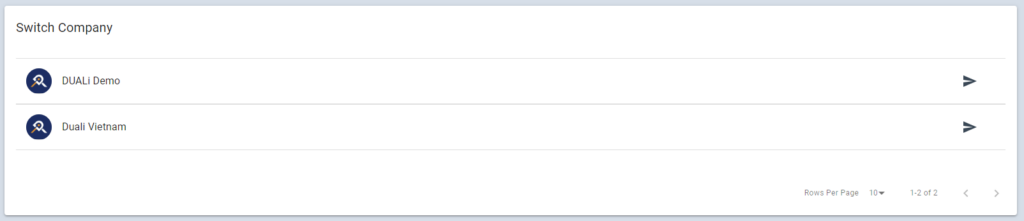
In case of managing several companies (HQ & Subsidiary ), select it from this list to monitor other companies
When you click the company, the screen automatically changes and shows data of the selected company.